Use groups and nested compositions
A group combines children into one visual result. Build a standalone Group,
then place it with project.root.add(group). Moving, scaling, rotating or fading
that placement affects all its children together.
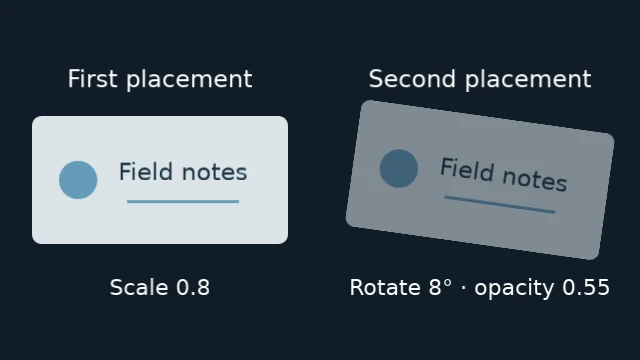
This standalone card example needs no input files:
"""Place one completed Group twice; run to replace group-placements.mp4."""

from vestra import Circle, Group, Project, Rectangle, Text

project = Project(
    size=(640, 360),
    fps=30,
    duration=3,
    background="#101c27",
    output_audio=False,
)

card = Group(size=(320, 160))

card.add(Rectangle(width=320, height=160, fill="#dbe4e8", corner_radius=12))

card.add(Circle(radius=24, fill="#659bba"), position=(0.18, 0.5))

card.add(Text("Field notes", font_size=30, fill="#1b3445"), position=(0.59, 0.44))
card.add(Rectangle(width=140, height=4, fill="#659bba"), position=(0.59, 0.67))

left = project.root.add(card, position=(0.25, 0.5), scale=0.8)
right = project.root.add(card, position=(0.75, 0.5), scale=0.8)

right.transform.rotation = 8
right.opacity = 0.55

project.root.add(Text("First placement", font_size=24), position=(0.25, 0.22))
project.root.add(Text("Second placement", font_size=24), position=(0.75, 0.22))

project.root.add(Text("Scale 0.8", font_size=22), position=(0.25, 0.80))
project.root.add(Text("Rotate 8° · opacity 0.55", font_size=22), position=(0.75, 0.80))

if __name__ == "__main__":
    project.render("group-placements.mp4", backend="cpu", overwrite=True)
Download the complete card example.
Run uv run python group_placements.py to write group-placements.mp4; rerunning replaces
it. Its graphics are original and use the bundled font.
Compose locally, then transform the result
A group has its own canvas. Its children use positions relative to that canvas;
the group's placement uses positions relative to its parent. The root canvas
matches the project's output size. Within either canvas, (0, 0) is the
top-left and (1, 1) is the bottom-right.
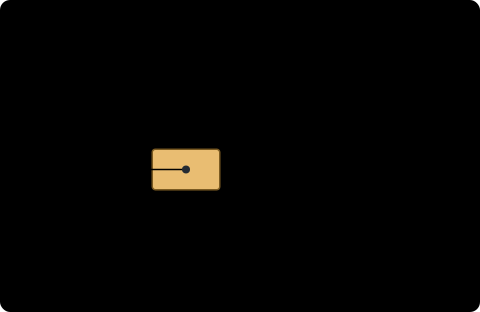
position uses the parent canvas: root for the group, group for the child.This new example matches the diagram. The small rectangle fades in after its panel appears:
from vestra import Group, Project, Rectangle

project = Project(
    size=(640, 360),
    fps=30,
    duration=5,
    background="#101c27",
)

panel = Group(size=(320, 180))

panel.add(
    Rectangle(
        width=320,
        height=180,
        fill="#263e4b",
    )
)

marker = panel.add(
    Rectangle(
        width=100,
        height=60,
        fill="#e9bd72",
    ),
    position=(0.25, 0.5),
    start=0.5,
    duration=2,
)

# Animate the child before placement.
# Adding the group copies this state.
marker.opacity.keyframe(0, 0)
marker.opacity.keyframe(0.5, 1)

placed_panel = project.root.add(
    panel,
    position=(0.5, 0.5),
    start=1,
    duration=3,
)
The default anchor is the center. The panel's position=(0.5, 0.5) centers it
in the root. The marker's position=(0.25, 0.5) places its center a quarter of
the way across the panel and halfway down. These values use different canvases;
the marker's position is not measured against the root.
Moving, scaling or rotating placed_panel transforms the completed group.
The marker keeps its local position=(0.25, 0.5) and follows that transform.
See coordinates and anchors for placement rules.
size sets the local canvas; it does not stretch child geometry. The marker is
100 × 60 local pixels. An unsized Group() inherits its immediately enclosing
canvas. A sized group nested inside another group starts a new coordinate space.
Child time starts with the group
The same nesting applies to time. start is measured on the containing timeline;
each placement's keyframes start from its own local zero. For the example above:
| Project time | Panel time | Marker time | Visible result |
|---|---|---|---|
| 1 s | 0 s | Not started | Panel appears |
| 1.5 s | 0.5 s | 0 s | Marker begins its fade at opacity 0 |
| 2 s | 1 s | 0.5 s | Marker reaches opacity 1 |
| 3.5 s | 2.5 s | End excluded | Marker disappears |
| 4 s | End excluded | Inactive | Panel and all its children disappear |
Subtract a placement's start to enter its clock:
The marker's 0.5-second opacity keyframe therefore lands at project second 2.
Moving placed_panel.start moves this whole sequence without rewriting any
child starts or keyframes. The panel's lifetime clips its children even if their
authored durations extend beyond it. Timeline and time
covers media clocks, duration resolution and frame boundaries.
Standalone Group and root.group()
These are two ways to author nested content, with the same local coordinate,
time and clipping rules. A standalone Group is usually the straightforward
starting point, even for content you place only once.
| Choice | Group(...), then root.add(group) |
root.group(...) |
|---|---|---|
| What you create | A source first, then a separate placement | One placement with an owned child composition immediately |
| Add children | Build the source before placing it | Keep editing the placed scene through scene.add() or scene.child |
| Reuse | Each add(group) copies the current children and their state |
Author children directly for this one placement |
| Local canvas | Set size, or inherit the parent if omitted |
Inherits the parent; group() has no size argument |
| Child ordering | Group.add(..., layer=...) |
scene.add(..., z=...) |
A standalone group is a snapshot source. Adding a child
to panel or changing marker after root.add(panel) does not update an earlier
placement. Edit the returned placement to move or fade that copy as a whole.
Use root.group() when you need an editable child composition, for example to
connect its children with scene.child.transitions.
The owned child recipe below shows the alternative. Transitions using the group itself as an endpoint belong to its parent composition.
Clipping happens before the parent transform
Children are clipped to their group's local canvas. Content outside it is lost before the group is transformed in its parent. Moving or shrinking the group cannot bring that clipped content back. Move the child inside the local canvas or enlarge the group when you need to preserve it. There is no overflow-visible option.
Child effects run in the local canvas. Effects on the group run on its completed, transformed placement in the parent, so an outer blur can spread beyond its bounds. A group mask applies to the already-composited group and follows its placement. Masks and mattes explain this distinction.
For fractional sizes, resource limits and exact transform rules, see nested composition reference.
Nest a sized group
This separate sized-group example reuses only project from the preceding
coordinate example. Import its own source classes before building the card:
from vestra import Circle, Group, Rectangle

card = Group(size=(600, 300))

card.add(
    Rectangle(
        width=100,
        height=80,
        fill="#2563eb",
        position=(0.25, 0.5),
    )
)
This new sized-group example is separate from the card above. The rectangle's
anchor is at (150, 150) inside the card. The card's own anchor
is placed at the center of its parent. The rectangle remains 100×80 pixels
before placement transforms; size does not stretch its geometry.
Sized groups nest with their own dimensions. Add the badge before placing the card: placement copies the children that exist at that moment.
badge = Group(size=(120, 60))

badge.add(Circle(radius=12, fill="#ffffff", position=(0.5, 0.5)))

card.add(badge, position=(0.75, 0.5))

project.root.add(card, duration=5, position=(0.5, 0.5))
The badge uses the card's local canvas. Add all children before placing the card.
Edit a child composition directly
Use this alternative when you need to edit the actual placed children after
creating the scene, or to add transitions between them. composition.group()
creates one CompositionLayer that owns an editable child composition. Add children through group.add()
or its child composition:
from vestra import Color, Project

project = Project(
    size=(1280, 720),
    fps=30,
    duration=5,
)

group = project.root.group(start=1, duration=3, z=2, id="scene")

group.add(Color("#0f172a"), duration=3)

badge = group.child.add(
    Color("#f97316"),
    start=0.5,
    duration=1.5,
    z=1,
)

badge.transform.scale = 0.5
Unlike Group(size=...), group() has no size argument: here the child canvas
is 1280 × 720, inherited from the root. Adding or editing badge updates this
placed scene directly; there is no separate source to add afterward.
The group starts at parent time one. badge starts at child time 0.5, so it
appears at parent time 1.5. Transforms, opacity, effects, and transitions on
the CompositionLayer affect the child placement in the parent. The child
layers retain their own local properties.
Use group.child.transitions for transitions between child siblings. Use
project.root.transitions when the child composition itself is one endpoint
of a parent transition.
Use the standalone style for reusable templates; edits to its source after placement do not change existing layers. Use the direct style to keep editing one owned child composition, including transitions between its siblings. Standalone group placements can also be transition endpoints in their parent. Both styles lower to the same canonical group clips and share media/font assets. Groups remain supported as owned mask inputs.
Nesting is recursive, subject to the project's validation limits. Keep a composition's timing explicit and validate after building deep or dynamically generated graphs.